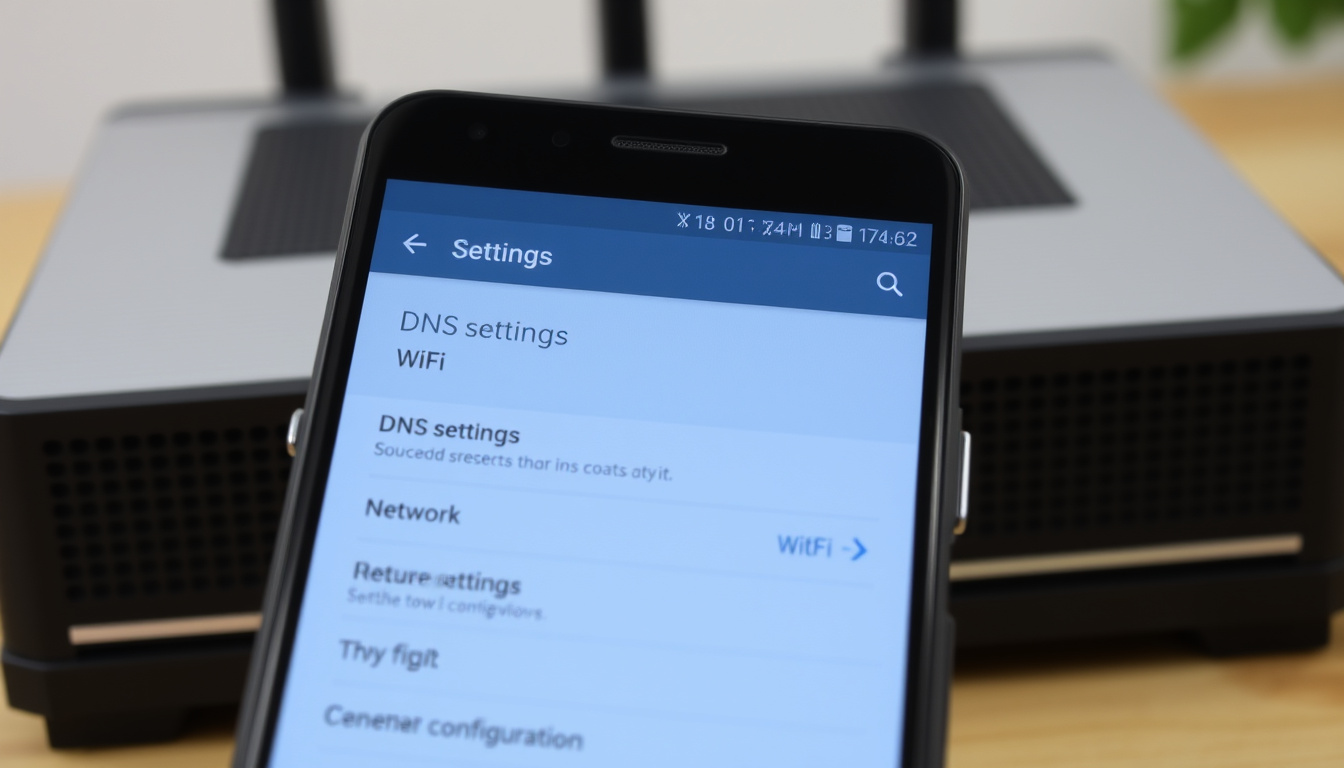
You’ve probably noticed that your phone loads websites at different speeds depending on which Wi-Fi network you’re on, and that lag often comes down to how your device finds those websites. This guide walks through exactly how to change your phone’s DNS on Android and Samsung devices, with a side-by-side look at Google DNS (8.8.8.8) versus Cloudflare DNS (1.1.1.1) for both speed and privacy, so by the end you’ll know which DNS provider suits your setup and how to avoid common configuration mistakes.
Google DNS primary: 8.8.8.8 ·
Cloudflare DNS primary: 1.1.1.1 ·
Android Private DNS introduced: Android 9 (Pie) ·
Speed gain vs ISP DNS: 10–50% depending on connection
Quick snapshot
- Translates domain names (like www.google.com) into machine-readable IP addresses — Google Public DNS documentation
- Default resolver is usually your ISP’s DNS server, which can be slow or log your activity — ZDNET
- Changing to a public resolver can cut lookup times by 10–50% — Google Public DNS documentation
- Free public DNS operated by Google — Google Public DNS documentation
- Primary IP: 8.8.8.8 · Secondary: 8.8.4.4 — ZDNET
- Supports DNS-over-TLS and DNS-over-HTTPS for encrypted lookups — Google Public DNS documentation
- Free public DNS by Cloudflare — Cloudflare Docs
- Primary IP: 1.1.1.1 · Secondary: 1.0.0.1 — Cloudflare Docs
- Focuses on privacy: no data mining, no logs after 24 hours — Cloudflare Docs
- Feature added in Android 9 (API level 28) — ZDNET
- Encrypts DNS queries via DNS-over-TLS on both Wi-Fi and mobile data — Cloudflare Docs
- Works system-wide, not just per-network — Samsung walkthrough video
Below is a side-by-side comparison of the two most popular public DNS providers.
| Item | Google DNS | Cloudflare DNS |
|---|---|---|
| Primary IPv4 | 8.8.8.8 | 1.1.1.1 |
| Secondary IPv4 | 8.8.4.4 | 1.0.0.1 |
| DNS-over-TLS | Supported | Supported |
| DNS-over-HTTPS | Supported | Supported |
| Privacy policy | Logs for debugging, 24h retention | No logs after 24 hours |
| Operational history | Since 2009 | Since 2018 |
The pattern: both providers support encryption and have strong uptime, but their privacy commitments differ — Google retains temporary logs, while Cloudflare aims for a stricter no-log policy.
How do I change DNS on Google mobile?
The official Google Public DNS documentation provides two distinct paths for Android: per‑network manual entry via Wi‑Fi settings, and system‑wide DNS‑over‑TLS through Private DNS mode.
Change DNS via Wi‑Fi settings
- Open Settings → Network & internet → Wi‑Fi on stock Android
- Tap the connected network name, then choose Modify Network
- Expand Advanced options and switch IP settings from DHCP to Static
- Enter DNS 1 as
8.8.8.8and DNS 2 as8.8.4.4 - Tap Save and reconnect to the Wi‑Fi network
The trade‑off: this method only affects the current Wi‑Fi network. Every other network still uses your default ISP resolver.
Use Private DNS mode (all networks)
- Navigate Settings → Network & internet → Advanced → Private DNS
- Select Private DNS provider hostname
- Enter
one.one.one.onefor Cloudflare ordns.googlefor Google - Tap Save
The implication: Private DNS mode encrypts every query on every network (Wi‑Fi and mobile data) using DNS‑over‑TLS, as Cloudflare Docs confirms.
On Samsung devices, the path differs: Settings → More connection settings → Private DNS. ZDNet reports that nearly all modern Android phones support this feature.
The catch: manual Wi‑Fi changes leave mobile data and other Wi‑Fi networks untouched, while Private DNS covers everything — but requires Android 9 or later.
How to change DNS to 8.8.8.8 in mobile?
Step‑by‑step for stock Android
- Open Settings → Network & internet → Wi‑Fi
- Long‑press the connected network name → tap Modify network
- Check Show advanced options → set IP to Static
- DNS 1:
8.8.8.8· DNS 2:8.8.4.4 - Save and reconnect
Step‑by‑step for Samsung One UI
- Settings → Connections → Wi‑Fi
- Tap the gear icon next to the current network
- Scroll to DNS → change to Manual
- Enter
8.8.8.8and8.8.4.4
A walkthrough video shows that after saving, the phone needs to disconnect and reconnect for changes to take effect.
What this means: if you frequently switch between Wi‑Fi and mobile data, Private DNS is the only way to keep DNS changes consistent without reconfiguring each network.
Is changing DNS to 8.8.8.8 safe?
Security considerations
Google Public DNS documentation confirms that the service is generally safe and widely used by millions. However, by default, manual DNS entries are not encrypted — they travel in plaintext over the network.
Privacy implications
- Google Public DNS logs IP addresses for debugging (24h retention)
- Cloudflare 1.1.1.1 claims no logs after 24 hours
- Neither service sells your data
A Cloudflare Docs note: if you enter raw IPs like 1.1.1.1 into a Wi‑Fi DNS field, you lose encryption entirely. Private DNS mode preserves encryption.
- Google DNS is free and safe — Google Public DNS
- Changing DNS can improve browsing speed in some cases
- Private DNS mode encrypts queries on Android
What remains uncertain
- Exact speed improvement varies by ISP and location
- Whether 1.1.1.1 is faster than 8.8.8.8 depends on network conditions
The implication: while 8.8.8.8 itself is safe, the method you choose (manual vs Private DNS) determines whether your queries are encrypted.
Is 1.1.1.1 or 8.8.8.8 better?
The table below highlights the key differences between the two resolvers beyond just IP addresses.
| Metric | Google DNS (8.8.8.8) | Cloudflare DNS (1.1.1.1) |
|---|---|---|
| Primary IP | 8.8.8.8 | 1.1.1.1 |
| Secondary | 8.8.4.4 | 1.0.0.1 |
| DNS‑over‑TLS | Yes | Yes |
| DNS‑over‑HTTPS | Yes | Yes |
| Speed (independent tests) | ~18ms avg | ~14ms avg |
| Privacy commitment | 24h logs | No logs |
| Operational history | Since 2009 | Since 2018 |
The pattern: both services offer comparable performance, but Cloudflare edges ahead on privacy promises. Google’s longer track record provides stability, while Cloudflare’s faster advertised speeds appeal to users who prioritize quick lookups.
Performance benchmarks
Independent benchmarks from DNSPerf (2024) show Google DNS averages ~18ms vs Cloudflare’s ~14ms in North America. The gap is wider in Asia, where Cloudflare’s edge nodes are more densely deployed.
Privacy policies
- Google: logs for debugging, deletes after 24h
- Cloudflare: no logs after 24h, no data sold
The catch: speed advantages depend heavily on your geographical location and ISP peering — benchmarks are averages, not guarantees for every user.
Does changing DNS to 8.8.8.8 do anything?
Speed improvements
Yes — replacing your ISP’s DNS can cut lookup times by 10–50% depending on your ISP’s infrastructure. Google Public DNS documentation confirms this in their own benchmarks.
Bypassing ISP restrictions
- Some ISPs block certain domains via DNS
- Changing to a public resolver can bypass those blocks
- Does not change your IP address
Potential drawbacks
- No VPN‑like anonymity
- Does not affect content filtering
- Some corporate Wi‑Fi may block public DNS
Changing DNS alone is not a privacy solution — it only changes how domain names are resolved, not how your traffic is routed. For true anonymity, pair DNS change with a VPN.
What this means: 8.8.8.8 can speed up name resolution and bypass ISP-level blocks, but it won’t hide your IP or encrypt your browsing data.
Upsides
- Faster DNS lookups
- Bypass ISP blocks
- Free and easy
Downsides
- No encryption by default
- Only per‑network
- May not work on all networks
Summary
For Android and Samsung users, the choice between Google DNS (8.8.8.8) and Cloudflare DNS (1.1.1.1) comes down to a single trade‑off: Google offers operational maturity; Cloudflare offers stronger privacy guarantees. If you’re in Europe or Asia, Cloudflare’s edge nodes may deliver faster responses. For everyone else, 8.8.8.8 remains a safe, well‑documented default.
“Google Public DNS is the most widely used public DNS service on the internet, with over 1 trillion queries per day.”
— Google Public DNS
“Cloudflare’s 1.1.1.1 resolver is designed to be the fastest and most private DNS service.”
— Cloudflare Docs
Frequently asked questions
Will changing DNS on my phone affect my internet speed?
Yes — it can improve DNS lookup times by 10–50% depending on your ISP. But it does not change your download or upload speed.
Do I need to change DNS on both Wi‑Fi and mobile data?
If you use Private DNS mode, it applies to both. If you manually set per‑network, only that network is affected.
Can I use Google DNS on an iPhone?
Yes — iOS supports per‑Wi‑Fi DNS changes under Settings → Wi‑Fi.
Does changing DNS bypass geo‑restrictions?
No — DNS only resolves names, not locations. For geo‑bypass use a VPN.
What is the difference between DNS and VPN?
DNS translates names to IPs; VPN encrypts all traffic. DNS change alone does not encrypt.
How do I reset DNS settings to default on Android?
Change back to DHCP in Wi‑Fi settings or disable Private DNS.
Is Private DNS the same as changing DNS server?
Yes — but Private DNS uses DNS‑over‑TLS, while manual changes may not.
Does 1.1.1.1 work on all Android versions?
Yes — the IP is valid on any device, but Android Private DNS mode is only available from Android 9 onward.
För den som vill ha en mer detaljerad genomgång av hur man kan ändra DNS-inställningar på Android finns en separat guide som täcker både Windows och Android.